Here are the best free flute VST plugins for Windows and Mac. We have included video demos, feature lists, pros, cons, and plugin ratings.
How we rate flute plugins: We rate each flute plugin based on sound quality, design, performance, features, usability, and compatibility. We rate plugins on a scale of 1 to 100.
Table of Contents

I have spent over 15 years testing and comparing hundreds of free and paid VST plugins, supported by hands-on demos on our YouTube channel, which has 12,000+ subscribers.
Best Free Flute VST Plugins
This table compares flute VST plugins by operating system, bit version, format, and rating.
| # | Plugin | OS | Formats | Bit Version | Ratings |
|---|---|---|---|---|---|
| 1 | Simple Flute | Windows Mac | VST, Kontakt | 64-bit | |
| 2 | One Track Orchestra | Windows Mac | N/A | 64-bit | |
| 3 | Serpo | Windows Mac | VST, AU | 32-bit, 64-bit | |
| 4 | VSCO2 Flute | Windows Mac | VST, AU | 32-bit, 64-bit | |
| 5 | Mini DiZi | Windows | VST | 32-bit | |
| 6 | IxoxFlute | Windows | VST | 32-bit | |
| 7 | Iowa Bass Flute | Windows Mac | VST, AU | 32-bit, 64-bit | |
| 8 | Mini DiZi | Windows | VST | 32-bit | |
| 9 | Varazuvi Indian Flute | Windows | VST | 32-bit, 64-bit | |
| 10 | VSCO2 Piccolo | Windows Mac | VST, AU | 32-bit, 64-bit | |
| 11 | Flutelab | Windows | VST | 32-bit | |
| 12 | Sonatina Flute | Windows Mac | VST, AU | 32-bit, 64-bit | |
| 13 | Iowa Alto Flute | Windows Mac | VST, AudioSuite | 32-bit, 64-bit | |
| 14 | DSK Overture | Windows | VST | 32-bit | |
| 15 | DmiFlute | Windows Mac | VST, AU | 32-bit, 64-bit |
1. Simple Flute

OS: Windows Win Mac Mac Bit Version: 64-bit Developer: FluffyAudio Size: 55 MB Rating: 65/100
Simple Flute is a free Kontakt sample library for creating expressive flute parts. It includes long and short articulations, three dynamic layers, adjustable vibrato, synthesized legato, and keyswitching for quick changes.
Its three round-robin samples add variation to short notes, while 16 convolution reverb presets shape the room sound. Breath and wind controllers are supported, with microtuning, filter, tuning, and crossfade controls. It requires full Kontakt 5.8.1 or later, not Kontakt Player.
Features
- Playable Flute Sample Library
- Long And Short Articulations
- Three Dynamic Layers
- Smooth Dynamic Layer Crossfading
- Adjustable Vibrato Control
- Synthesized Legato Engine
- Three Round-Robin Short Samples
- Realistic Trills And Grace Notes
- Breath Controller Support
- Keyswitch Articulation Changes
Pros
- Small 55 MB library
- Smooth three-layer dynamics
- Realistic synthesized legato
- Breath controller support
- Wind controller support
- Easy keyswitch articulation changes
- Three round-robin short samples
- Sixteen natural room reverbs
- Flexible microtuning presets
- Expressive trills and grace notes
Cons
- Requires the full Kontakt version
- Not compatible with Kontakt Player
- No standalone plugin mode
- No VST3 or AU version
- Only two playing articulations
- Limited short-note round robins
- Small sample set limits realism
Video Demo
What Users Say
Simple Flute Tips
- I start with the long articulation for smooth, singing notes. It works well for melodies and soft background parts.
- I use the short articulation for quick notes and clear rhythms. This helps flute parts sound less flat.
- I move the mod wheel to shape the volume when the patch supports it. Small changes can make the melody feel more alive.
- I add gentle vibrato to long notes. I keep it light so the sound stays natural.
- I use keyswitches to change between long and short notes while I play. This lets me build a more complete flute part in one track.
- I try a few round-robin notes in a row when writing repeated short notes. This can help reduce a machine-like sound.
- Write flute parts like a singer would play them. Add breaths, pauses, and simple phrases instead of making one long stream of notes.
2. One Track Orchestra
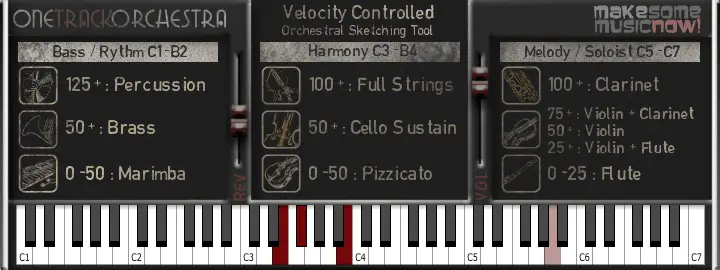
OS: Windows Win Mac Mac Bit Version: 64-bit Developer: Misery Factor Size: 47 MB Rating: 64/100
One Track Orchestra offers a fast way to sketch full orchestral ideas in your DAW using just one track. It combines strings, brass, woodwinds, and percussion across the keyboard, letting you create quick arrangements without setting up multiple instruments or templates.
Each section reacts to velocity, giving different tones depending on how softly or hard you play. With only reverb and volume controls, it stays simple while letting you focus on ideas. It’s ideal for songwriters, game jam projects, or quick demos needing instant orchestral sound.
Features
- Full Orchestra On One Track
- Free 64-Bit VST Instrument
- Includes Strings, Brass, Woodwinds, Percussion
- Keyboard Mapped Instrument Sections
- Velocity Responsive Sound Changes
- Simple Reverb And Volume Controls
- Low CPU And Memory Usage
- Fast Loading And Low Latency
- Works Well In Most DAWs
- Based On VSCO Community Samples
Pros
- Full orchestra on one track
- Light on CPU usage
- Works well on low-spec PCs
- Includes strings, brass, and woodwinds
- Instant cinematic sound with reverb
- Free alternative to big libraries
- Quick setup for fast scoring
- No need for multisample setup
- Very small footprint and file size
- 64-bit support for modern DAWs
Cons
- Very limited sound realism
- No multiple articulations support
- Lacks round-robin sampling variety
- User interface looks outdated
- Not suitable for final productions
- Can sound flat or synthetic
- Velocity mapping feels inconsistent
- Crashes when changing presets fast
- Limited dynamic expression range
- No updated versions or support
Video Demo
What Users Say
One Track Orchestra Tips
- Use velocity control to make horn notes sound more real and expressive.
- Layering multiple horn articulations can give a more natural and full sound.
- Reverb and room simulation can make virtual horns sound more like a live recording.
- Use EQ to remove low rumbles and keep the horn section clear in the mix.
- Panning different horn parts slightly left and right helps them sound wide and balanced.
- Try using compression to control horn dynamics if they jump out too much in the mix.
3. Serpo
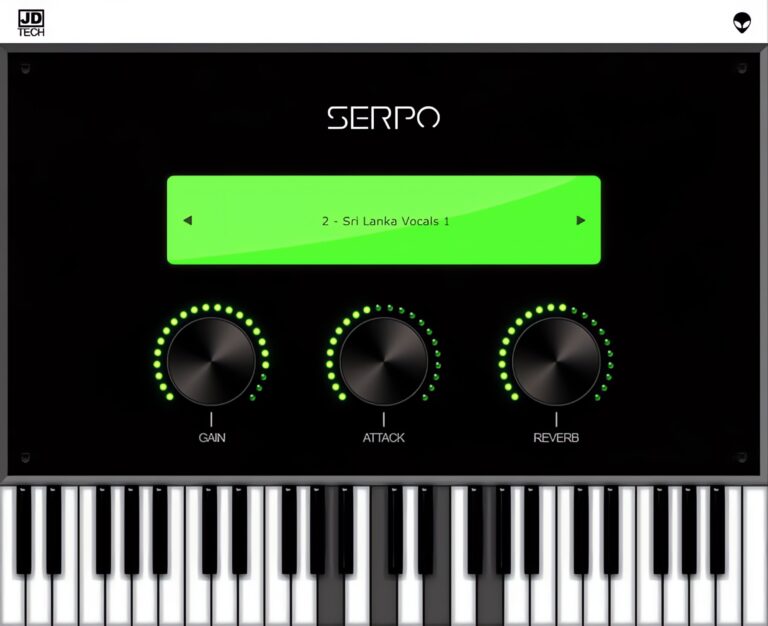
OS: Windows Win Mac Mac Bit Version: 32-bit, 64-bit Developer: JD TECH Size: 30 MB Rating: 63/100
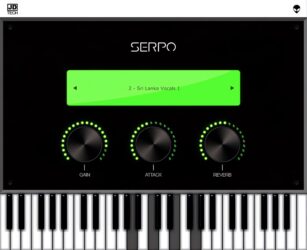
Serpo offers a free and simple way to explore a wide range of sounds for music creation. Developed by JD TECH, it includes instruments such as piano, violin, guitar, trumpet, and drums, along with male and female vocals. Each sound is sampled from artists around the world.
The plugin includes basic controls like gain, attack, and reverb to shape tone and depth. Its built-in preset selector allows quick sound changes for different styles. Serpo works on both Windows and Mac, making it a practical tool for producers seeking fresh, ready-to-use sounds.
Features
- Free Rompler VST Plugin
- Original Sounds From Artists
- User-Friendly Interface Design
- Reverb Effect For Depth
- Preset Selector For Quick Access
- Built-In Virtual Keyboard
- Light On CPU Usage
- Works On Windows And Mac
- Supports VST And AU Formats
- Includes Leads, Pads, And Basses
Pros
- Free to download and use
- Works on Windows and Mac
- Wide mix of real instruments
- Includes horns and brass sounds
- Low CPU use during play
- Fast loading with no extras
- Includes reverb for space depth
- Attack control for sound shaping
- Better variety than most free horns
- Lightweight but good sound quality
Cons
- Sound quality below pro standards
- Missing detailed horn articulations
- Lacks multilayer instrument sampling
- No modulation or LFO options
- Does not support MIDI learn
- No velocity sensitivity options
- Limited to basic sound shaping
- Few updates since initial release
- Bugs and crashes sometimes reported
- Not optimized for big projects
Video Demo
What Users Say
Serpo Tips
- I like to play with the attack and release knobs to make the horn sound smoother or punchier.
- I often use a MIDI keyboard to control Serpo because it helps me get more natural-sounding notes.
- I use a small amount of reverb to make the horn sound like it’s in a real room.
- I like to use EQ to cut some low frequencies so the horn doesn’t clash with the bass.
- Automate the expression or modulation wheel in your DAW for more lifelike horn phrasing.
- Layer Serpo with another horn plugin to get a fuller, more realistic brass section sound.
- Adding light compression can help control horn dynamics and keep the volume steady.
4. VSCO2 Flute

OS: Windows Win Mac Mac Bit Version: 32-bit, 64-bit Developer: bigcat Instruments Size: 65 MB Rating: 63/100
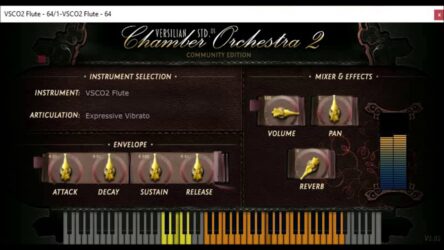
VSCO2 Flute is a sampled flute plug-in created from recordings by Versilian Studios and Sam Gossner. It provides realistic flute tones suited to orchestral music and layered instrument parts.
The plug-in includes sustain and other articulation options, ADSR controls, volume, pan, and reverb. It runs on Windows and Mac in VST and AU formats, with 32-bit and 64-bit support.
Features
- Sampled Real Flute Instrument
- ADSR Envelope Controls
- Multiple Playing Articulations
- Built-In Reverb Effect
- Overall Volume Control
- Stereo Pan Control
- On-Screen Keyboard Display
- Colored Key Range Markers
- Supports VST And AU
- Available In 32- And 64-Bit
Pros
- Uses real flute samples
- Includes useful playing articulations
- Supports sustained flute sounds
- Includes vibrato playing options
- Offers quick playing styles
- Provides helpful ADSR controls
- Adds room sound with reverb
- Shows playable notes onscreen
- Marks special keys with colors
- Loads sounds through instrument selection
Cons
- No VST3 format available
- No AAX format support
- May fail on newer macOS
- Installation can confuse some DAWs
- No breath controller support
- No natural legato control
- Can sound cheap without layering
Video Demo
What Users Say
VSCO2 Flute Tips
- I start with a simple melody so I can hear the flute’s tone clearly before adding other sounds.
- I keep the flute part in a comfortable range so it sounds smooth and natural.
- I lower the MIDI velocity when I want a softer and more gentle flute sound.
- I draw small changes in volume so long notes do not sound flat or lifeless.
- Keep rests between phrases so the part sounds like a player is taking a breath.
- Use pitch bends and light vibrato in small amounts to add life to held notes.
- I add a small amount of reverb to help the flute fit into the space of the song.
5. Mini DiZi

OS: Windows Win Bit Version: 32-bit Developer: Kong Audio Size: 17 MB Rating: 62/100
Mini DiZi is a free Windows VST instrument featuring Chinese flute sounds, including Tenor DiZi, Xiao, and several expressive playing styles. It offers a simple way to explore traditional flute tones in music projects.
Controls include fine tuning, polyphonic mode, glide, velocity response, attack, sustain, decay, release, pan, and volume. MIDI tutorial files made for ChineeWinds can help users learn suitable DiZi playing techniques.
Features
- Free Chinese Flute VST Instrument
- Tenor Dizi And Xiao Sounds
- Various Dizi Expression Styles
- Fine Pitch Adjustment
- Polyphonic Mode Control
- Glide Between Notes
- Velocity Sensitivity Control
- Attack, Sustain, Decay, Release
- Stereo Pan Control
- Main Output Volume Control
Pros
- Includes tenor Dizi sounds
- Includes Xiao flute sounds
- Offers varied expression styles
- Creates realistic flute tones
- Delivers natural note changes
- Supports smooth note glides
- Enables polyphonic playing
- Responds to playing strength
- Includes helpful tutorial MIDI files
Cons
- Windows computers only
- 32-bit plugin limits compatibility
- VST format only
- No VST3 support
- No AU support
- May need JBridge software
- Limited sound editing controls
Video Demo
What Users Say
Mini DiZi Tips
- I try both the Tenor DiZi and Xiao sounds to find the best tone for my song.
- I use the expression settings to add more feeling to long notes and soft phrases.
- I keep the melody mostly monophonic because Mini DiZi is made for one note at a time.
- I change the MIDI note lengths to make the flute sound more natural and less stiff.
- I add small pitch bends to copy the gentle bends heard in real flute playing.
- I use reverb to place the flute in a room, hall, or wide open space.
- Cut some low bass from the flute track so it does not fight with the kick or bass.
6. IxoxFlute

OS: Windows Win Bit Version: 32-bit Developer: Ixox Size: 17 MB Rating: 59/100
IxoxFlute is a free sampled flute VST for Windows. It covers three octaves with three velocity layers, plus staccato, détaché, and percussive modes. It also includes a second flute with automatic doubling for fuller sounds.
Controls adjust articulation, volume, attack, release, pitch, pan, gain, delay, and a rough tone effect. IxoxFlute is available as a 32-bit VST and can create breathy leads, backing parts, and layered flute sounds.
Features
- Sampled Flute Sounds
- Three-Octave Flute Range
- Three Velocity Layers
- Staccato And Détaché Mode
- Percussive Playing Mode
- Automatic Second Flute
- Single Or Dual Flute Mode
- Second Flute Pitch Shifter
- Individual Flute Gain Controls
- First Flute Roughness Control
Pros
- Free sampled flute instrument
- Three-octave main flute range
- Three velocity layers add expression
- Minimal pitch changes between samples
- Breathy sound adds natural character
- Natural lip sounds remain audible
- Staccato articulation adds sharp attacks
- Percussive mode adds rhythmic impact
- Automatic second flute creates fullness
- Second flute pitch can shift
Cons
- Only supports old 32-bit Windows
- No VST3, AU, or AAX support
- Cannot run natively on Mac
- Limited three-octave playing range
- Articulation changes may behave randomly
- Loading twice can crash Cubase
- Samples may sound rough or noisy
Video Demo
What Users Say
IxoxFlute Tips
- I start with the Normal articulation for a smooth flute sound. I switch to Staccato or Percussive when I need a sharper attack.
- I use the mod wheel to add vibrato. I keep it gentle so the flute sounds more natural.
- I use Expression, often set to MIDI CC11, to make notes grow or fade. This helps the flute sound less flat.
- I try the Legato setting when notes should flow into each other. I turn it off for short, separate notes.
- Write parts with small changes in note length and volume. Perfectly even notes can make a sampled flute sound stiff.
- Place short rests between some notes. Real wind players need time to breathe, and rests can make the melody feel more human.
- Add light reverb to place the flute in a room. A short room sound works well for a close part, while a hall sound gives a larger feel.
7. Iowa Bass Flute

OS: Windows Win Mac Mac Bit Version: 32-bit, 64-bit Developer: bigcat Instruments Size: 42 MB Rating: 59/100
Iowa Bass Flute is a sampled virtual instrument made from recordings at the University of Iowa Electronic Music Studios. It delivers a soft, full bass flute tone for adding color or realistic low woodwind parts.
Volume, pan, attack, decay, sustain, and release controls shape the sound. A built-in keyboard plays natural, sharp, and flat notes. The plugin runs on Windows and Mac in VST and AU formats.
Features
- Sampled Real Bass Flute
- Realistic Alto Flute Sound
- VST And AU Formats
- 32-Bit And 64-Bit Versions
- Volume And Pan Controls
- Adjustable Attack And Decay
- Adjustable Sustain And Release
- Built-In Piano Keyboard
- Natural, Sharp, And Flat Notes
- Three Velocity Sample Layers
Pros
- Uses samples from a real flute
- Provides a warm, soft tone
- Adds deep low flute color
- Covers a less common flute range
- Includes useful ADSR shaping controls
- Supports natural and sharp notes
- Works on Windows and Mac
- Supports both VST and AU
- Needs no separate sampler
- More focused than larger flute libraries
Cons
- Limited controls beyond basic envelope
- No vibrato or breath control
- No legato playing engine
- No staccato articulation option
- No round-robin note variation
- Short samples may sound repetitive
- Limited dynamic expression while playing
Video Demo
What Users Say
Iowa Bass Flute Tips
- I start with a simple melody before adding many notes. This helps me hear the flute clearly.
- I play notes in a smooth line instead of making every note too short. This makes the part sound more like a real flute.
- I use gentle volume changes to make my melody feel alive. I slowly raise or lower the track volume when needed.
- I leave space between phrases when I write flute parts. The pauses help the music breathe.
- I use a little reverb to place the flute in a room. I keep the reverb low so the sound does not become muddy.
- Use MIDI expression or automation to control loudness during long notes. This can make a sampled flute part sound less flat.
8. Mini DiZi
OS: Windows Win Bit Version: 32-bit Developer: Kong Audio Size: 17 MB Rating: 58/100
Mini DiZi is a free 32-bit Windows VST instrument from Kong Audio. It recreates Chinese flute sounds, including Tenor DiZi and Xiao, with several expression styles. The preset display, tuning, glide, poly mode, and velocity controls shape its performance.
Use attack, sustain, decay, release, pan, and volume controls to adjust each sound. MIDI tutorial files made for ChineeWinds can also help demonstrate Dizi playing techniques. Mini DiZi is suited to adding a distinct flute tone to music projects.
Features
- Free Chinese Flute Instrument
- Tenor DiZi And Xiao Sounds
- Multiple Chinese Flute Expressions
- Fine Pitch Adjustment
- Polyphonic Playing Mode
- Smooth Note Glide Control
- Velocity Sound Response
- Adjustable Attack And Sustain
- Adjustable Decay And Release
- Main Output Volume Control
Pros
- Distinctive Chinese flute character
- Includes Tenor DiZi sounds
- Adds expressive Xiao flute tones
- Offers several playing styles
- Supports playable polyphonic parts
- Smoothly glides between notes
- Fine tuning shapes each sound
- Velocity changes playing character
- Tutorial MIDI files teach phrasing
- Creates unique soundtrack colors
Cons
- Windows only, no Mac version
- 32-bit limits modern DAWs
- No VST3 or AU support
- SF2 loading can fail
- Small playable note range
- Limited vibrato control
- No true legato control
Video Demo
What Users Say
Mini DiZi Tips
- I try both the Tenor DiZi and Xiao sounds to find the best fit for my song. They have different tones and moods.
- I use gentle pitch bends to make my flute parts feel more natural. Small bends often sound better than large ones.
- I leave small gaps between notes so the flute can “breathe.” This keeps the part from sounding like a keyboard.
- I use the MIDI velocity controls to shape each note. Softer notes can sound gentle, while louder notes can feel stronger.
- I move some notes slightly off the grid by hand. This can make the performance feel less stiff.
- Keep the melody in a comfortable range for the chosen flute sound. Very high or very low notes may sound less natural.
- I add a little reverb to place the flute in a room. I keep the amount low so the melody stays clear.
9. Varazuvi Indian Flute
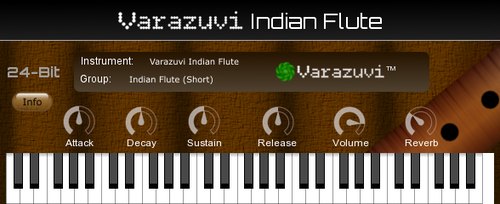
OS: Windows Win Bit Version: 32-bit, 64-bit Developer: Varazuvi Entertainment Size: 50 MB Rating: 58/100
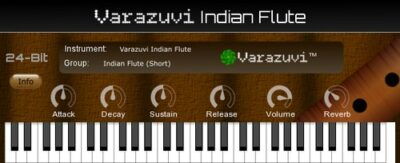
Varazuvi Indian Flute is a Windows VST instrument built from high-resolution recordings of an Indian flute. It covers two octaves with layered samples, multiple velocity levels, and three playing styles: short, medium, and long, for varied MIDI performances.
Shape the sound with attack, decay, sustain, release, volume, and reverb controls. Six variable effects add tone options, while the on-screen keyboard supports mouse or MIDI input. The plugin runs in 32-bit and 64-bit host setups at 48 kHz.
Features
- Real High-Resolution Flute Recordings
- Two Octaves Of Samples
- Multiple Velocity Layers
- Three Recorded Playing Styles
- Attack, Decay, Sustain, And Release Controls
- Volume And Reverb Controls
- Six Variable Effects
- 24-Bit Sound Quality
- VST Format Support
- MIDI Keyboard Support
Pros
- Real high-resolution flute recordings
- Two full octaves included
- Multiple velocity layers
- Three playing styles included
- Short, medium, and long notes
- Authentic slides and vibrato
- Flexible attack control
- Adjustable decay and sustain
- Natural release shaping
- Six variable effects
Cons
- Windows-only support limits platform choices
- VST-only support misses newer formats
- Only two octaves limit melodies
- Focuses on one flute sound
- No breath-control expression features
- No dedicated vibrato control knob
- No pitch-bend shaping controls
Video Demo
What Users Say
Varazuvi Indian Flute Tips
- I install the plugin in my DAW’s VST folder, then rescan the plugin list if it does not appear. Varazuvi Indian Flute is made for Windows VST use.
- I play the flute with a MIDI keyboard instead of drawing every note by hand. This lets me add more natural changes in note strength.
- I try the short, mid, and long playing styles to find the right sound for each part. These styles use separate flute recordings.
- I use soft and hard key presses to control the flute’s feeling. The plugin includes several velocity layers for more life and movement.
- I adjust the attack when I want the notes to begin more gently. A slower attack can help the flute blend into pads and other soft sounds.
- I change the release when I want notes to fade out longer or stop faster. Shorter releases can make fast melodies sound cleaner.
- I add only a small amount of reverb at first. Then I raise it slowly until the flute feels like it belongs in the song.
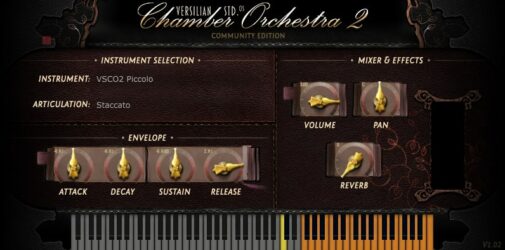
10. VSCO2 Piccolo

OS: Windows Win Mac Mac Bit Version: 32-bit, 64-bit Developer: bigcat Instruments Size: 13 MB Rating: 58/100
VSCO2 Piccolo is a free sampled piccolo flute plugin by bigcat Instruments, using recordings by Versilian Studios and Sam Gossner. It runs on Windows and Mac in VST and AU formats, with 32-bit and 64-bit versions. Windows XP is not supported.
The plugin includes staccato articulation and controls for attack, decay, sustain, release, volume, pan, and reverb. A keyboard display shows the playable range, while the mixer and effects section shapes level, stereo position, and room ambience.
Features
- Free Sampled Piccolo Flute
- VST And AU Formats
- 32-Bit And 64-Bit Support
- Selectable Staccato Articulation
- Adjustable Attack, Decay, Sustain, Release
- Instrument Volume Control
- Adjustable Stereo Panning
- Room And Hall Reverb
- Playable Keyboard And Note Range
- Mixer And Effects Controls
Pros
- Free sampled piccolo instrument
- Recorded by Versilian Studios
- Works on Windows and Mac
- Supports VST and AU formats
- Shows the selected instrument
- Displays the current articulation
- Adjusts note attack speed
- Shapes decay after each note
- Adds room and hall ambience
- Includes mixer and effects
Cons
- Only one piccolo sound included
- No full flute sound included
- No breath control for expression
- No vibrato control for realism
- Few articulation choices are available
- No physical modeling for live changes
- Sampled notes may sound less natural
Video Demo
What Users Say
VSCO2 Piccolo Tips
- I start with a simple melody so I can hear the piccolo clearly before adding other instruments.
- I add small gaps between notes so fast piccolo lines sound clean instead of blurred.
- I move the piccolo up an octave when I need it to stand out above the orchestra.
- I lower the volume when the high notes feel too sharp or loud in the mix.
- I use gentle reverb to place the piccolo in the same room as the other instruments.
- Keep the MIDI part within a comfortable range so the notes sound more natural.
- Test the flute part with the full song playing, because a sound that is bright alone may fit well once other instruments are added.
11. Flutelab

OS: Windows Win Bit Version: 32-bit Developer: Infected-Sounds Size: 4 MB Rating: 56/100
Flutelab is a free 32-bit flute rompler VST for Windows by Infected-Sounds. It includes 24 flute presets with three oscillators for layering sounds, plus pitch, volume, filter, and noise controls.
Two LFOs and two envelopes add movement and shape to each sound. Effects include equalization, chorus, ensemble, decimation, reverb, and overdrive, while portamento creates smooth note changes.
Features
- 24 Flute Presets
- Three Flute Sound Oscillators
- Two Low-Frequency Oscillators
- Two Modulation Envelopes
- Dual Filters For Tone Shaping
- Adjustable Pitch And Volume
- Velocity-Based Sound Controls
- Portamento For Smooth Transitions
- Equalizer With Four Bands
- Decimator And Reverb Effects
Pros
- Twenty-four flute sounds included
- Three oscillators create layered tones
- Two LFOs add moving sound
- Two envelopes shape each note
- Dual filters sculpt the tone
- Filters work on chosen oscillators
- Velocity adds playing expression
- Portamento creates smooth note slides
- Ensemble creates wider moving tones
- Decimator creates lo-fi textures
Cons
- Only works on Windows
- 32-bit format limits compatibility
- No listed VST3 support
- May require a plugin bridge
- No clearly named flute articulations
- No realistic playing techniques
- Synth layers can sound artificial
Video Demo
What Users Say
Flutelab Tips
- I start with a Flutelab preset that fits my song. Then, I make small changes until it feels right.
- I add small pitch bends to make the flute sound more alive. I use them only on notes that need extra feeling.
- I try different octaves to find the best place in the mix. A higher octave can sound bright, while a lower one can sound warm.
- I add a little reverb to give the flute more space. I keep the reverb low so the notes stay clear.
- Match the flute part to the key of the song. Wrong notes can make even a good flute sound unpleasant.
- Use MIDI velocity to control note strength. Louder notes can add feeling and help the melody stand out.
- Test the flute with the full beat playing. A sound that seems plain alone may fit perfectly in the whole mix.
12. Sonatina Flute

OS: Windows Win Mac Mac Bit Version: 32-bit, 64-bit Developer: bigcat Instruments Size: 47 MB Rating: 56/100
Sonatina Flute is a free collection of sampled flute sounds from the Sonatina Symphonic Orchestra library. It includes Flute, Flutes Sustain, Flutes Staccato, Alto Flute, and Piccolo sound groups.
The plugin includes volume, pan, attack, decay, sustain, and release controls, plus an on-screen keyboard. It supports VST and AU formats on Windows and Mac, with 32-bit and 64-bit versions.
Features
- Sampled Flute Instrument Collection
- Includes Five Flute Groups
- Features Flute And Piccolo Sounds
- Includes Alto Flute Sounds
- Provides Sustain And Staccato Articulations
- Offers Volume And Pan Controls
- Includes Attack, Decay, Sustain, Release
- Supports VST And AU Formats
- Supports 32-Bit And 64-Bit Systems
- Includes Playable Piano Keyboard
Pros
- Includes five flute sound groups
- Offers flute and alto flute
- Includes a dedicated piccolo sound
- Has sustain and staccato articulations
- Covers several useful playing styles
- Shapes notes with ADSR controls
- Built-in keyboard allows quick testing
- Works in VST and AU formats
- Needs no separate sampler
- Offers more flute colors than basic freebies
Cons
- Limited expressive breath control
- Samples can sound dated
- Some notes sound unnatural
- Lacks realistic dynamic layers
- No vibrato control included
- No legato performance mode
- Crash reports raise serious concerns
Video Demo
What Users Say
Sonatina Flute Tips
- I start with the Flute group to learn the main sound. Sonatina Flute also includes sustain, staccato, alto flute, and piccolo groups.
- I play simple scales first to learn the useful note range. This helps me avoid notes that sound too high or too low.
- I draw notes in the piano roll before recording a full part. This lets me fix wrong notes and timing mistakes.
- I change the note lengths to shape the music. Shorter notes can sound playful, while longer notes can sound calm.
- I add a small amount of reverb to place the flute in a room. I keep the reverb low so the notes stay clear.
- I lower the flute volume when it covers the main song. A soft flute part often blends better with other instruments.
- Automate the volume to make phrases rise and fall. This gives the part a more natural shape.
13. Iowa Alto Flute

OS: Windows Win Mac Mac Bit Version: 32-bit, 64-bit Developer: Bigcat Instruments Size: 29 MB Rating: 53/100
Iowa Alto Flute is a virtual instrument from Bigcat Instruments, using samples from the University of Iowa Electronic Music Studios. It recreates the warm, natural tone of an alto flute and supports Windows and Mac in VST and AudioSuite formats.
The plugin includes volume and pan controls, plus attack, decay, sustain, and release settings for shaping notes. A built-in keyboard lets you play with a mouse or MIDI keyboard, with support for 32-bit and 64-bit systems.
Features
- Sampled Alto Flute Sounds
- Natural And Expressive Tones
- Adjustable Volume And Panning
- ADSR Envelope Controls
- Playable Keyboard Interface
- Mouse And MIDI Control
- VST Format Support
- AudioSuite Format Support
- 32-Bit And 64-Bit Support
Pros
- Authentic sampled alto flute tones
- Recorded from University of Iowa
- Natural and expressive flute sound
- Focused alto flute instrument
- Simple controls for quick shaping
- Playable with a MIDI keyboard
- Supports Windows and Mac
- Includes 64-bit support
- Supports AudioSuite formats
- Small, focused alternative to orchestra suites
Cons
- Only one flute type
- Alto range may limit songs
- Offers very few sound controls
- No built-in reverb or delay
- No alternate flute articulations
- No breath control features
- Missing modern VST3 support
Video Demo
What Users Say
Iowa Alto Flute Tips
- I raise the attack time when I want soft and smooth note starts.
- I use a longer release when I want the flute to fade out in a gentle way.
- I keep the notes in a comfortable range so the part sounds more natural.
- I add light reverb to help the flute fit into a room or concert hall.
- I draw small changes in note volume to make the melody feel more alive.
- Leave small gaps between phrases so the music can breathe.
- Use a high-pass filter to remove extra low sounds that may make the mix muddy.
14. DSK Overture
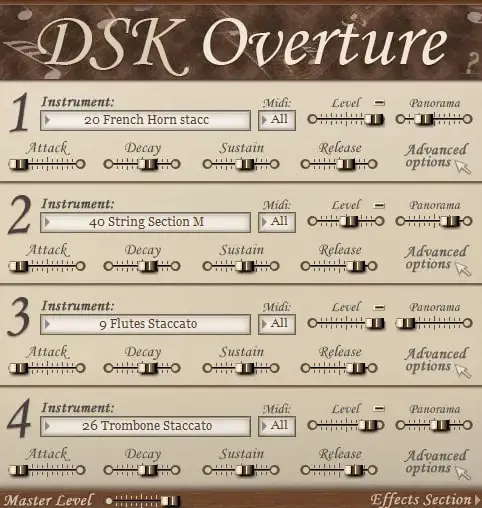
OS: Windows Win Bit Version: 32-bit Developer: DSK Music Size: 85 MB Rating: 47/100
DSK Overture is a free orchestral plugin that brings a range of classic instruments into one simple tool. It includes strings, brass, woodwinds, and percussion, letting you mix up to four layers for rich and varied sounds. Each section can be shaped with volume, pan, and filter controls.
It offers built-in effects like reverb, delay, and chorus to add depth and space to your tracks. With MIDI control for each layer, you can create quick orchestral sketches or experiment with layered textures in your music projects.
Features
- Four Instrument Layers Available
- Adjustable Amp Envelope Controls
- Advanced Multimode Filter Options
- Built-In Reverb, Delay, Chorus
- Supports MIDI Automation
- Velocity Sensitive Sound Response
- Attack, Decay, Sustain, Release Settings
- Simple Instrument Selector Interface
- MIDI Channel Selection Feature
- Master Volume Level Adjustment
Pros
- Four instrument layers per instance
- Offers both solo and section presets
- Includes built-in reverb and delay
- Customizable envelope controls
- Advanced filter options available
- Supports MIDI automation control
- Can use four MIDI channels
- Lightweight compared to some libraries
- Simple interface for quick setup
- Free and easy to download
Cons
- Only works on Windows systems
- No 64-bit plugin version
- Heavy CPU use on laptops
- Can crash during big projects
- Strings lack real warmth
- Some samples are out of tune
- Few updates or bug fixes
- Noise and crackles on playback
- Very limited sound customization
- Sample quality lower than rivals
Video Demo
What Users Say
DSK Overture Tips
- I try changing the attack and release settings to make notes sound smoother.
- I use EQ to remove any muddiness from the cello low tones.
- I use reverb to make the cello sound like it’s playing in a big room.
- Apply light compression to the cello to keep the sound steady and clear.
- Experiment with note dynamics for expressive cello performances.
- Use automation to make the cello volume rise and fall naturally over time.
- Blending cello plugins with other strings can create a realistic symphonic sound.
15. DmiFlute

OS: Windows Win Mac Mac Bit Version: 32-bit, 64-bit Developer: Smartelectronix Size: 0.2 MB Rating: 45/100
DmiFlute is a physical-modelled flute synthesizer by Smartelectronix that explores flute-like tones and unusual sounds. Its Lips and Lungs controls shape tone and breath, while the vibrato LFO adds pitch movement with adjustable depth and speed.
A multimode resonant filter provides cutoff, resonance, and filter-shape controls for darker, sharper, or more experimental textures. DmiFlute runs on Windows and Mac in VST and AU formats, with 32-bit and 64-bit versions.
Features
- Physical Modeling Synthesis
- Adjustable Lip Shape
- Variable Breath Strength
- Built In Vibrato LFO
- Adjustable Vibrato Depth
- Adjustable Vibrato Speed
- Multimode Resonant Filter
- Adjustable Filter Cutoff
- Adjustable Filter Resonance
- Multiple Filter Types
Pros
- Free for creative sound design
- Physical modeling creates unique tones
- Goes beyond normal flute sounds
- Adjustable lip tone shaping
- Breath control adds sound changes
- Built-in vibrato LFO
- Multimode resonant filter included
- Several filter types included
- More flexible than fixed samples
- Great for strange textures
Cons
- Sounds more synthetic than natural
- Limited control over musical expression
- Only one basic flute model
- No realistic playing articulations
- No legato note transitions
- May produce badly tuned notes
- Older formats may limit compatibility
Video Demo
What Users Say
DmiFlute Tips
- Use a clean, simple melody when testing a flute VST. This makes it easier to hear the tone, pitch, and note changes.
- Keep the melody within a comfortable flute range first. DmiFlute is often reported to work best around the real flute range of C4 to C7.
- I keep the vibrato depth low at first. Then I slowly raise it until the sound feels warm and alive.
- I move the filter control a little at a time. Small changes can make the flute sound soft, bright, dark, or strange.
- I use a light reverb after DmiFlute. Reverb can make the sound feel like it is playing in a room or hall.
- Use gentle pitch changes to make a flute part feel more natural. Small slides and bends can sound more expressive than perfectly straight notes.
- Try a high-pass filter on the flute track. This can remove low rumble and leave more space for bass and drums.
Flute SoundFonts

Another excellent option for flute sounds is to use Flute SoundFonts. You can install a free SoundFont player and load the flute Soundfonts into the player.
Free Flute SoundFonts:
Musical Artifacts – Musicians have long been dedicated to preserving their art. Musical Artifacts is the perfect tool for preserving the artifacts used for music. This open-source web app helps musicians find, share, and preserve the tools of their trade. Whether you’re a musician looking for inspiration or an enthusiast looking to learn more about your favorite artist, Musical Artifacts is the perfect resource.
Producer Feed – This website offers 29 free flutes, trombones, and sax sound fonts to download. You can also find a variety of other instruments, such as guitars, drums, and strings. If you’re looking for a specific instrument, you can use the search bar to narrow your options.
Producers Buzz – You can download 14 free flute sound fonts SF2 files that are compatible with all DAWs that support them. Whether you use FL Studio, Logic Pro, Ableton Live, or any other DAW, you’ll be able to use these sound fonts.
Zander Jaz – If you’re looking for free sound fonts, Zander Jaz is an excellent option. This website offers a wide variety of free soundfonts, including wooden flutes, piano, and drums. You can also find a variety of other instruments, such as guitars, strings, and brass.
Polyphone – You can download over 2,000 free instruments, including flute sound fonts, at Polyphone. This website offers various instruments, from strings and brass to percussion. You can also find a variety of other instruments, such as guitars, keyboards, and drums.
Full Instrument Sets—This website offers two flute-related SoundFont files to download. It also offers a variety of other instruments, such as guitars, strings, and brass.
Flute VST Plugins Compared
This table compares the top 10 Flute VST plugins by features, controls, effects, formats, and more.
| Details | Simple Flute | One Track Orchestra | Serpo | VSCO2 Flute | Mini DiZi | IxoxFlute | Iowa Bass Flute | Mini DiZi | Varazuvi Indian Flute | VSCO2 Piccolo |
|---|---|---|---|---|---|---|---|---|---|---|
| Image | 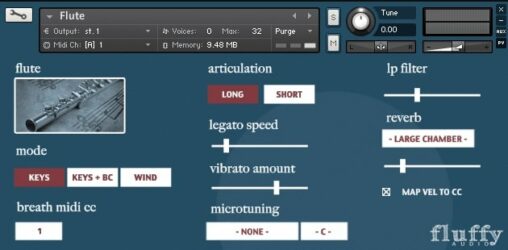 |
 |
 |
 |
 |
 |
|
|
 |
 |
| Rating | ||||||||||
| OS | Windows, Mac | Windows, Mac | Windows, Mac | Windows, Mac | Windows | Windows | Windows, Mac | Windows | Windows | Windows, Mac |
| Formats | VST, Kontakt | N/A | VST, AU | VST, AU | VST | VST | VST, AU | VST | VST | VST, AU |
| Bit Version | 64-bit | 64-bit | 32-bit, 64-bit | 32-bit, 64-bit | 32-bit | 32-bit | 32-bit, 64-bit | 32-bit | 32-bit, 64-bit | 32-bit, 64-bit |
| Developer | FluffyAudio | Misery Factor | JD TECH | bigcat Instruments | Kong Audio | Ixox | bigcat Instruments | Kong Audio | Varazuvi Entertainment | bigcat Instruments |
| License | Freeware | Donationware | Freeware | Freeware | Freeware | Freeware | Freeware | Personal-Use | N/A | Freeware |
| Sample-Based | Yes | Select | Select | Yes | Yes | Yes | Yes | Yes | Yes | Yes |
| Download Size | 55 MB | 47 MB | 30 MB | 65 MB | 17 MB | 17 MB | 42 MB | 17 MB | 50 MB | 13 MB |
| CPU Load | Low | Low | Low | Low | Low | Low | Low | Low | Low | Low |
| Polyphony | N/A | 8 | 8 | 32 | 1 | N/A | 1 | 1 | N/A | 64 |
| Features | Dynamic Layers, Legato Engine, Adjustable Vibrato, Long/Short Articulations, Round-Robin Samples, Impulse Reverb, Controller Support | Single-track orchestra, Velocity mapping, Reverb control, Volume control, Keyboard zones, Instrument icons, Free plugin | Original sounds, Gain control, Attack control, Reverb effect, Preset selector, User-friendly interface, Versatile library | Sampled Flute, ADSR Controls, Reverb, Articulation Options, Instrument Selection, Stereo Panning, On-Screen Keyboard | Tenor DiZi, Xiao Flute, Expression Styles, Polyphonic Play, Glide Control, Velocity Sensitivity, Envelope Controls | Sampled Flute, Three Octaves, Velocity Layers, Staccato Mode, Percussive Mode, Automatic Doubling, Breathy Sound | Sampled Bass Flute, Realistic Sound, Soft Tone, Simple Interface, Volume Control, Stereo Panning, ADSR Envelope | Chinese Flute Sounds, Tenor DiZi, Xiao Flute, Expression Styles, Polyphonic Mode, Glide Control, ADSR Envelope | High-Resolution Recordings, Parameter Controls, Two Octaves, Multilayered Samples, Velocity Layers, Three Playing Styles, Variable Effects | Sampled Piccolo, Free Instrument, Articulation Control, Envelope Controls, Volume Control, Stereo Panning, Reverb Effects |
| Controls | Mode, Breath MIDI CC, Articulation, Legato Speed, Vibrato Amount, Microtuning, Key Tuning | Bass / Rhythm, Harmony, Melody / Soloist, Reverb Knob, Volume Knob, Keyboard Display, Instrument Icons | Display Screen, Arrow Buttons, Gain Knob, Attack Knob, Reverb Knob, Preset Selector, Keyboard | Instrument Selection, Instrument, Articulation, Attack, Decay, Sustain, Release | Preset Display, Fine, Poly, Glide, Velo, Attack, Sustain | Mode, Volume, Articulation, First Flute Distance, First Flute Dirty, First Flute Attack, First Flute Release | Vol, Pan, Attack, Decay, Sus, Rel, Piano Keyboard | Preset Display, Fine, Poly, Glide, Velo, Attack, Sustain | Attack, Decay, Sustain, Release, Volume, Reverb, Piano Keyboard | Instrument Selection, Articulation, Attack, Decay, Sustain, Release, Volume |
| Effects Included | LP Filter, Reverb | Reverb | Reverb, Filter, Glide | Reverb | Unknown | Distortion, delay, pitch shifting | None | Unknown | Reverb | Reverb |
| MIDI Learn | No | Unknown | Unknown | Yes | Select | Select | No | Yes | No | No |
| Presets | 16 | N/A | 100 | N/A | 2 | N/A | N/A | N/A | N/A | N/A |
| Standalone | No | Select | Yes | No | Yes | No | Select | Yes | No | No |
| Last Updated | N/A | N/A | 06/01/2024 | 05/21/2024 | 07/07/2005 | 05/21/2024 | 10/31/2026 | 07/07/2005 | 12/06/2026 | 05/21/2024 |
Favorite Flute VST Plugin
Our top pick for the best free Flute VST plugin is One Track Orchestra by Misery Factor. It offers a wide selection of instruments, effects, controls, and it’s available for both Windows and Mac.
| Details | One Track Orchestra |
|---|---|
| Image |
|
| Rating | |
| OS | Windows, Mac |
| Formats | N/A |
| Bit Version | 64-bit |
| Developer | Misery Factor |
| License | Donationware |
| Sample-Based | Select |
| Download Size | 47 MB |
| CPU Load | Low |
| Polyphony | 8 |
| Features | Single-track orchestra, Velocity mapping, Reverb control, Volume control, Keyboard zones, Instrument icons, Free plugin |
| Controls | Bass / Rhythm, Harmony, Melody / Soloist, Reverb Knob, Volume Knob, Keyboard Display, Instrument Icons |
| Effects Included | Reverb |
| Download | Download One Track Orchestra |
Flute VST FAQs
How to Install Flute VST Plugins
To install flute VST plugins on Windows or Mac, extract the files from the Zip or Rar. Move the files (.dll for Windows or .component for Mac) into your DAW’s plugin folder. Then restart your software and rescan the directory to complete the process. Tutorial: How to Install VST Plugins
Windows:
Extract the downloaded zip file and copy the .dll file into the VST plugins folder scanned by your DAW. Restart your music software and rescan your plugin directory to begin using the new VST.
Mac OS X:
Extract the downloaded archive and move the .component or .VST file to the plugin folder. It is usually /Library/Audio/Plug-Ins/Components or /Library/Audio/Plug-Ins/VST. Restart your DAW and rescan your plugins to complete the installation.
I hope you enjoy these free flute VSTs.
You May Also Like: